
How to Filter SEEK Jobs: Salary, Work From Home and More
By the Orry team · Published
How do you filter jobs on SEEK?
Most people type a job title into SEEK, hit search and start scrolling. The filters are easy to miss, and they do most of the work of cutting a long results page down to roles you would actually consider.
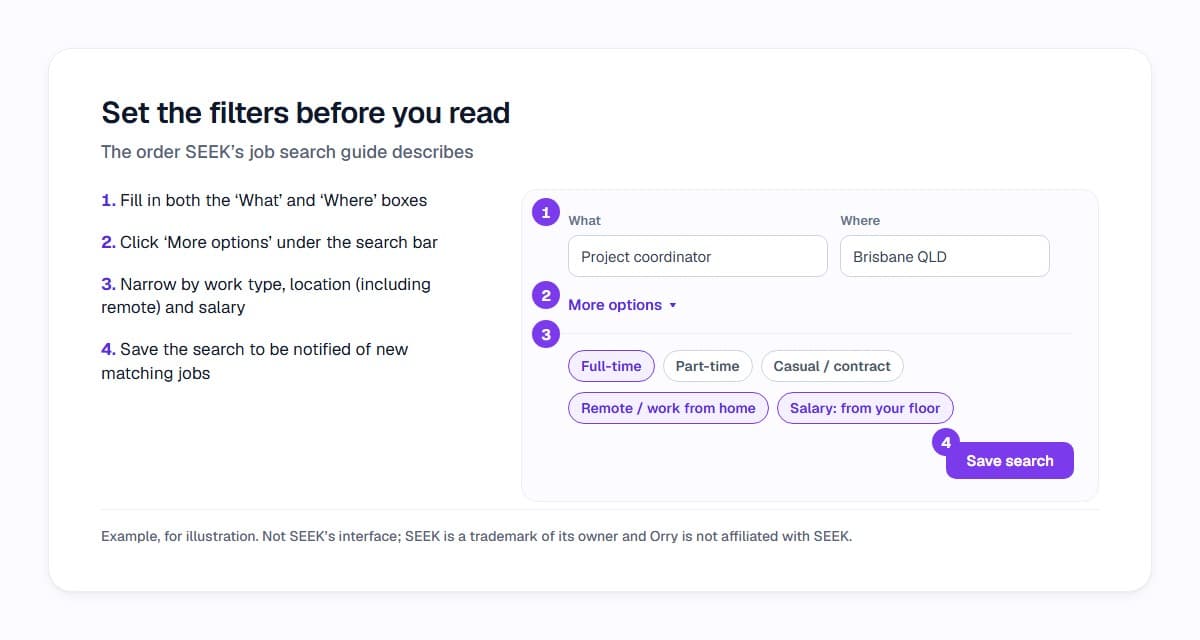
SEEK's own job search guide suggests filling in both the 'What' and the 'Where' boxes, then clicking 'More options' under the search bar to show the filters. From there you can narrow results by:
- Work type: full-time, part-time, or casual and contract work
- Location, including remote and work-from-home roles
- Salary, using SEEK's salary filter
Set the filters before you start reading ads, not after you have opened twenty tabs. Every ad you never have to open is a few minutes back.
How does the SEEK salary filter work?
The salary filter is the one most worth setting, and the one people most often misunderstand. SEEK says its salary filter hides jobs that don't meet your salary expectations.
What surprises many people is that it works on ads that don't show a salary at all. SEEK's career advice explains that employers who advertise on SEEK have to include what they are willing to pay for the role, even if they choose not to display the salary in the ad, and that you can use the salary filter to search by salary even when the range isn't shown. That hidden figure is what the filter searches. So an ad that only says "competitive salary" can still appear, or be filtered out, based on the pay the employer entered behind the scenes.
Two habits make the filter more useful:
- Decide whether your number is base salary or a total package before you type it in. Ads mix "$90,000 + super" and "$100,000 package", and those are close to the same offer.
- Run one search at your real minimum, not an optimistic figure. Setting the floor too high quietly removes roles you would have been happy with.
When an ad does show pay, read the wording beside the number. "Plus super", "package" and "inclusive of super" change what the headline figure means.
How do you find work from home jobs on SEEK?
SEEK's job search guide describes choosing where you'd like to work, or whether you would like a remote or work-from-home job, as part of the location settings. In results, many listings also carry a work arrangement label beside the location, such as "(Remote)" or "(Hybrid)".
That label is chosen by whoever posted the ad, so treat it as a starting point:
- Read the body of the ad for the actual arrangement: how many office days, which days, and whether working from home starts straight away or after probation.
- Run the search once with the remote or hybrid filter and once without. An employer who left the field blank but describes flexibility in the text won't show up in the filtered search.
- "Work from home" and "remote" are not always the same thing. Some remote roles still expect occasional on-site days or travel.
If you are trying to decode what an ad's hybrid wording really commits to, our guide to what hybrid means in a job ad goes through the common phrases.
How do you save a SEEK search and get alerts?
Once your filters are set the way you want, save the search instead of rebuilding it every day. SEEK's guide says there is a blue 'Save' button at the top right of the search results list, and that saving a search means you get notified when new jobs matching it are posted.
A few saved searches with tight filters usually beat one broad search you scroll through daily. For example, one search for your main role title at your salary floor, one for a related title, and one for remote roles only.
SEEK also offers tailored job recommendations based on your profile. Those are separate from your saved searches, so it is worth keeping your SEEK Profile up to date if you rely on them.
What is SEEK Quick Apply?
Quick Apply is SEEK's faster way to apply for a job while you are signed in, reusing the details already saved in your SEEK account. SEEK's help centre covers a few details worth knowing before you use it:
- Your SEEK Profile, including your career history, education, licences and certifications, and skills, is available to the employer as part of your application. Employers see your profile as it was when you applied, so later updates don't reach applications you have already sent.
- You can keep up to 10 resumés on SEEK, set one as the default, and choose which one to send with each application.
- Some employers send you to their own website to apply instead, and that application happens outside SEEK.
Quick Apply saves typing. It doesn't change how the employer reviews what you send, so it is still worth choosing the resumé and cover letter that fit the role.
Does SEEK use AI or an ATS to screen applications?
This is one of the most common questions about SEEK, and SEEK's own pages answer it fairly directly.
SEEK's help centre says its role is to connect job seekers with employers. Applications sent through SEEK go straight to the employer, and SEEK doesn't review them. If you want to follow up on an application, SEEK says to contact the employer directly.
Screening happens on the employer's side. SEEK's career advice notes that many recruitment agencies use software to pre-filter resumés, and that recruiters and employers increasingly rely on technology and keywords to scan resumés and SEEK Profiles. Which system a particular employer uses, if any, is up to that employer.
SEEK does use data on its own side for some features. Its "strong applicant" badge is shown only to you, not to employers, and SEEK describes it as based on information such as the job ad and your default resumé. It is a guide, not a promise of a shortlist.
The practical upshot: write your resumé for a person and make sure it uses the words the ad uses for the skills you genuinely have. Keyword stuffing doesn't help when a human reads it next.
Filters narrow the list. They don't rank it.
Even with every filter set, a SEEK results page can still hold dozens of roles that technically match. The filters can't tell which of them suit your priorities: the office days you will accept, how far you will commute, the salary you need and the deal breakers you won't bend on.
That is the gap Orry for SEEK fills. You set your priorities once in Career DNA, and Orry adds a personal score and the reasons behind it to every job in your SEEK results, so the roles that fit stand out before you open them. The score is guidance on fit, not a prediction of being hired, and the decision about any job stays yours.
SEEK is a trademark of its owner; Orry is not affiliated with SEEK.
If you would like your own priorities applied to every SEEK search you run, you can add Orry to Chrome and try it free.
See which jobs fit you before you open them.
Orry scores the jobs you browse on SEEK and LinkedIn Jobs against what matters to you, with the reasons.
Free to install · No credit card · Works on the sites you already use
Sources
- How to make the most of your job search (SEEK Career Advice, updated 23 July 2026)
- 3 hurdles that stop people from applying for jobs (SEEK Career Advice)
- How to answer: 'What are your salary expectations?' (SEEK Career Advice, updated 29 October 2026)
- How do I save a search? (SEEK Help Centre)
- How do I apply for a job on SEEK? (SEEK Help Centre)
- Will the employer see changes I make to my profile after I've applied? (SEEK Help Centre)
- Looking for more information about a job you applied for? (SEEK Help Centre)
- What is strong applicant and very strong applicant badge? (SEEK Help Centre)
- How to get your resume past the robots (SEEK Career Advice)
Researched with AI assistance and checked by a person before publishing: editorial policy.